
Card payments
Finito with the SwitchioPay card terminal
Finito runs directly on the NEXGO N92 payment terminal, alongside the SwitchioPay app. For a card payment it simply passes the amount to SwitchioPay and never handles any card data. SwitchioPay prints receipts on the terminal's printer, according to its own settings.
Every screenshot on this page is taken from the app itself. Steps that happen in the SwitchioPay app are shown as a grey placeholder with a caption.
Before you start
What you'll need
- A NEXGO payment terminal with SwitchioPay, and a contract with Comgate.
- Finito installed on the terminal from the Switchio Store (signed by Comgate).
- The first-run setup completed, which creates the business's account in about a minute.
Permissions
Once the owner sets a PIN, each of these actions requires the matching permission:
- Turning on card payments
- Administration
- Reversals and refunds to the card
- Refunds
- Closures
- Confirm payments
For Comgate testers
No login details or test account are needed. Install the APK, go through the first-run setup without setting a PIN, so that staff can do everything, then turn on card payments as described below.
Setup
Turn on card payments
You only need to do this once, in the settings. It applies to all of the business's devices.
Open Settings, then Payment methods.
SettingsPayment methods
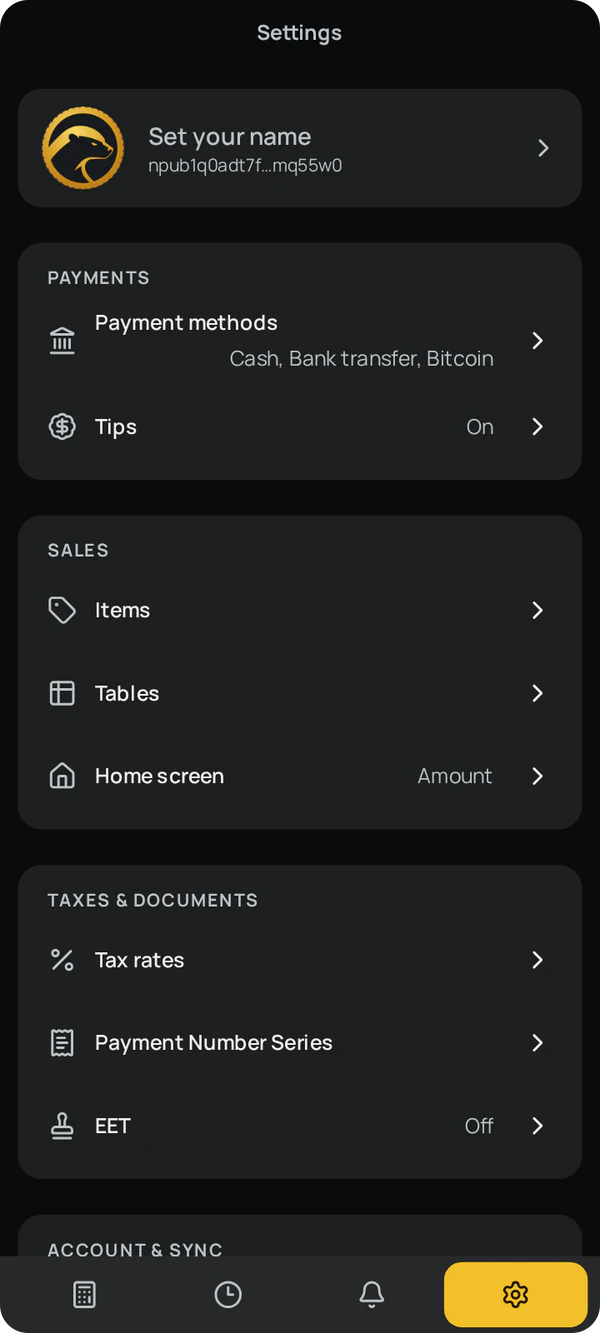
Card payments are off by default. If SwitchioPay is missing from the terminal, a note next to the payment card says so.
Payment card
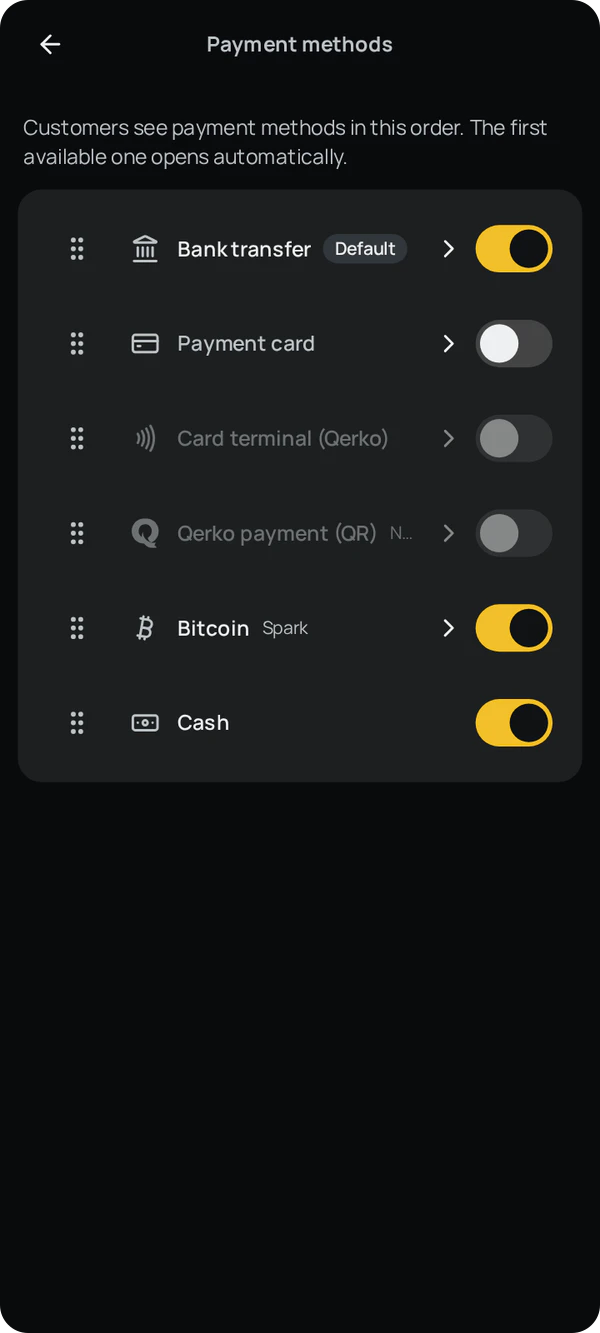
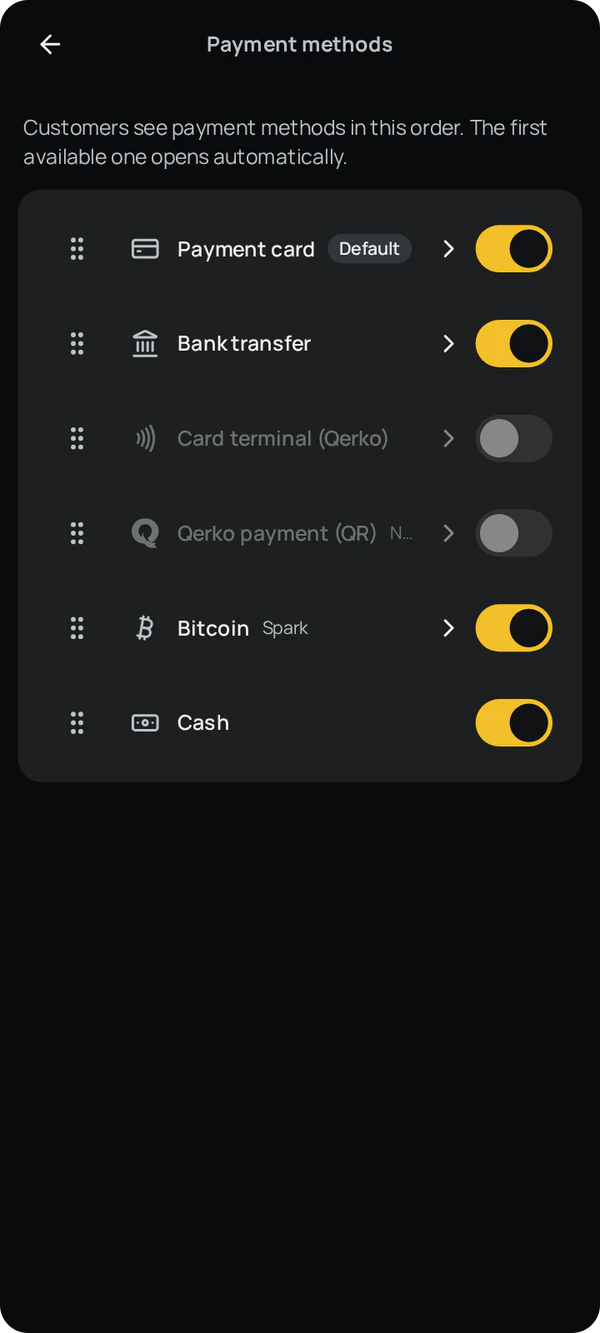
Turn on the switch. When taking a payment, the method marked as default opens first; drag the methods to change their order.
Default
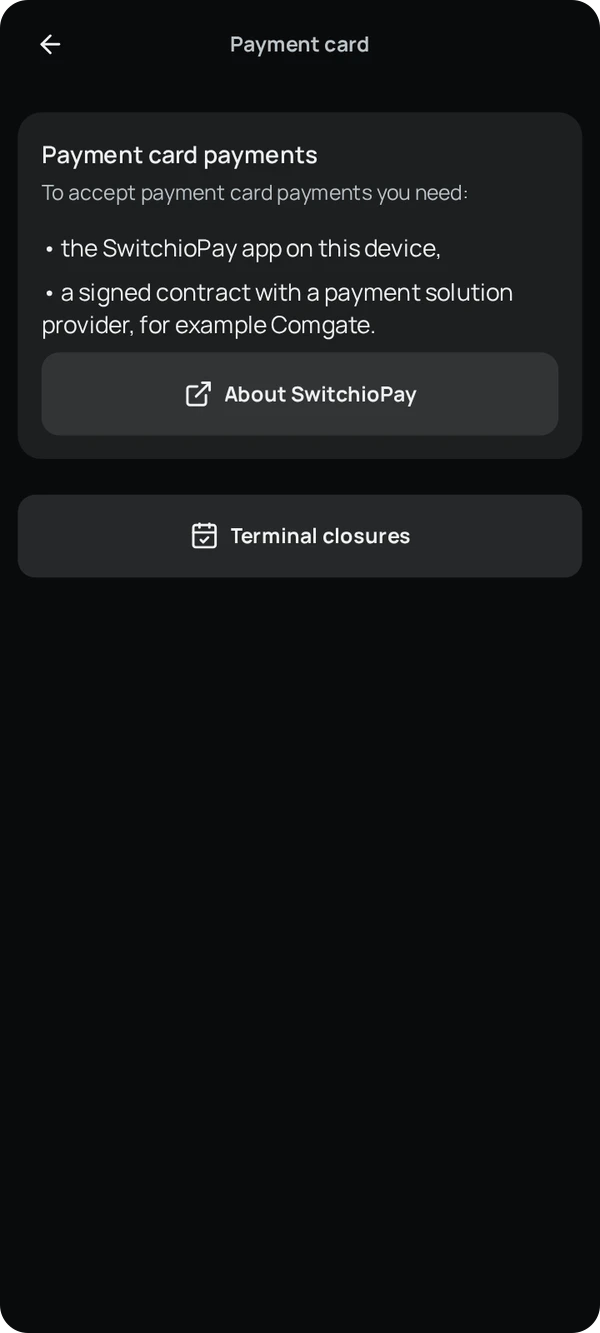
Tap the payment card to see what card payments require and to find the link to terminal closures.
Terminal closures
Payment
Taking a card payment
Finito passes SwitchioPay the amount, the tip separately, the currency and the payment number as the invoice number.
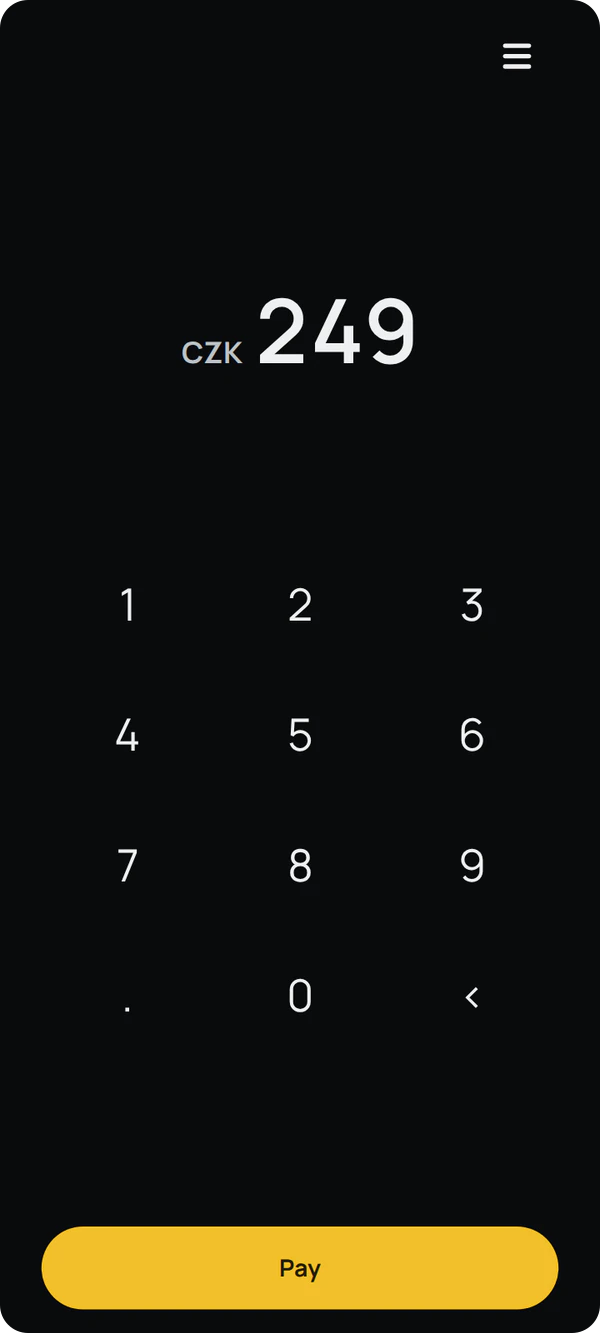
Enter the amount and tap Pay. A bill for a table or from the catalog is paid the same way.
Pay
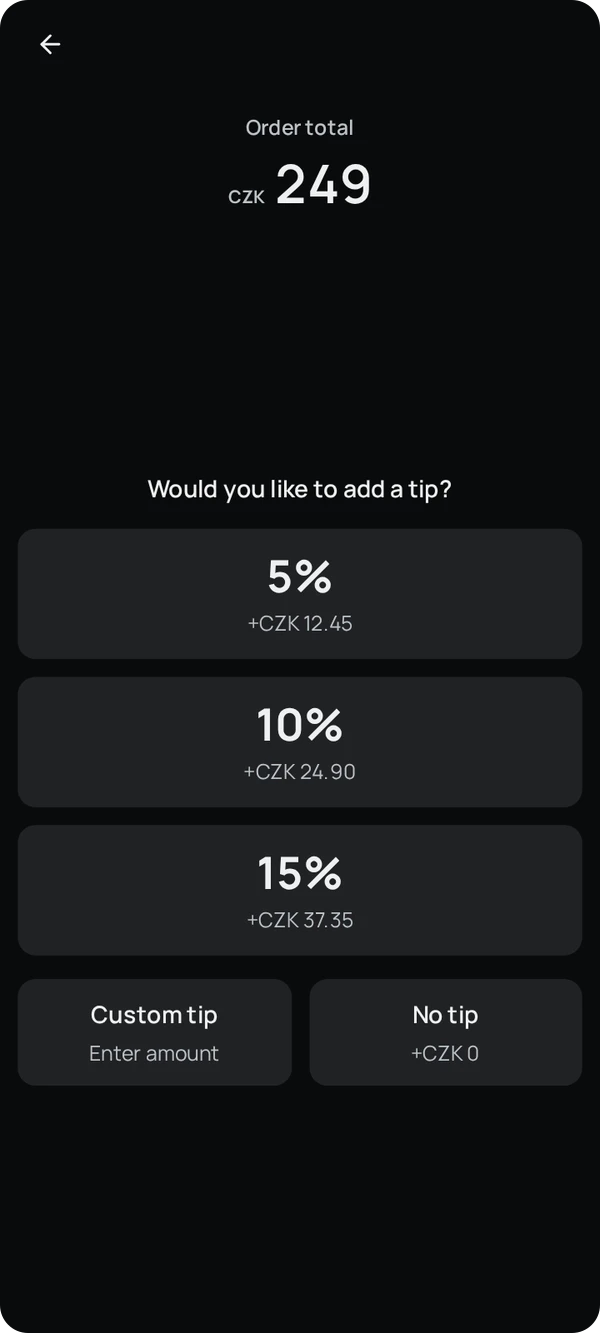
If tips are turned on, the customer chooses one. SwitchioPay receives the tip separately from the amount.
Would you like to add a tip?
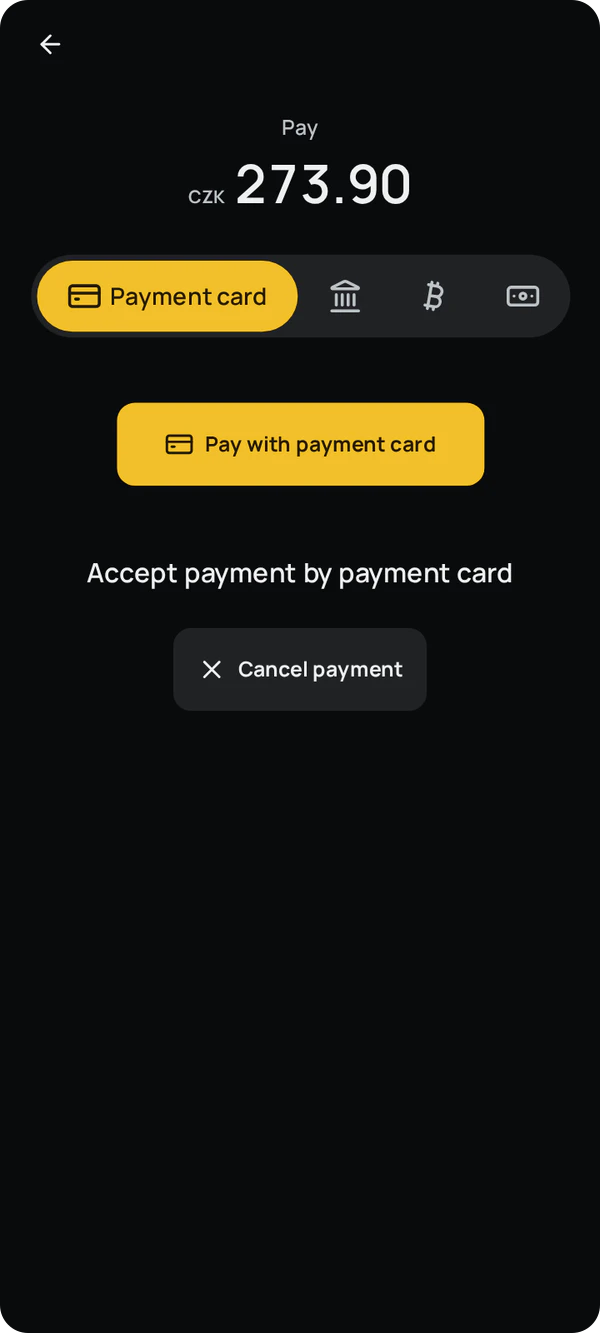
On the Payment card tab, start the payment.
Payment cardPay with payment card
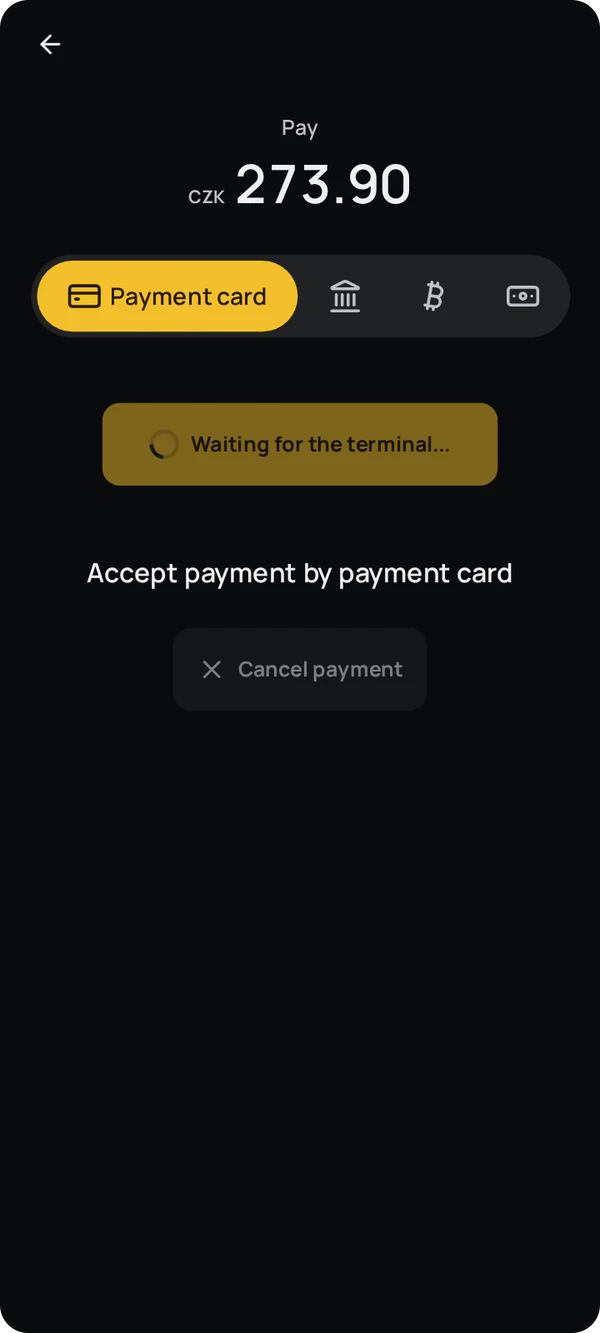
Finito waits while SwitchioPay completes the payment.
Waiting for the terminal...
SwitchioPay takes over: the customer taps their card and enters their PIN if the terminal asks for it.
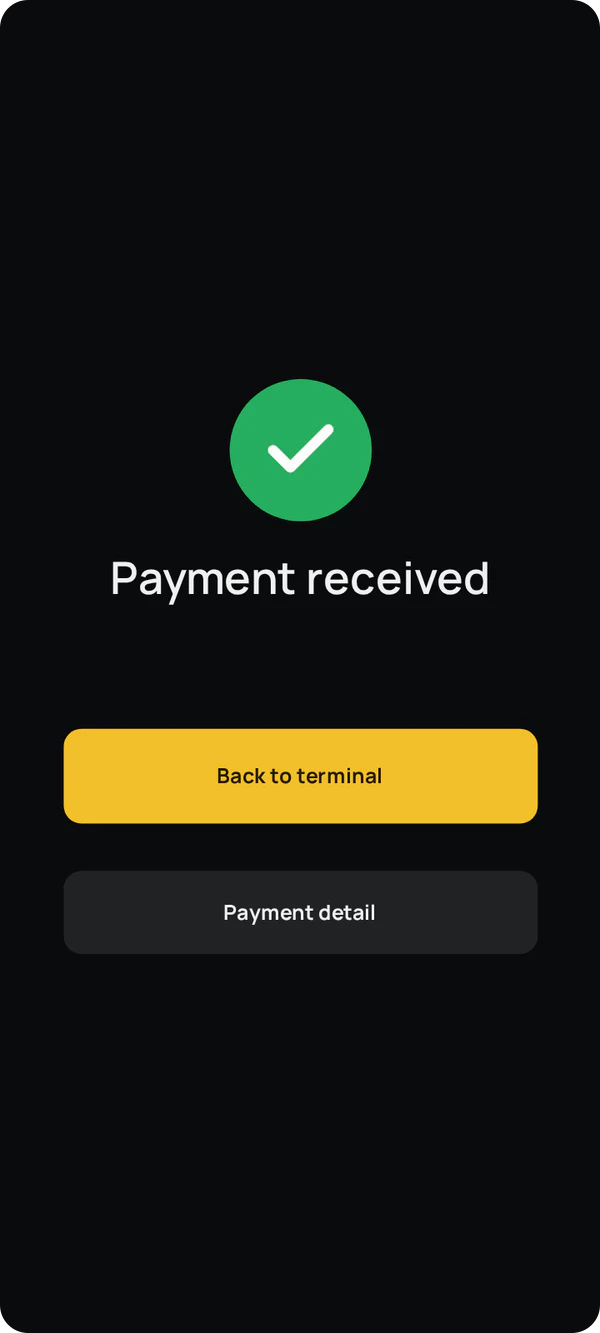
SwitchioPayThe customer taps their card Back in the app, the payment shows as received.
Payment received
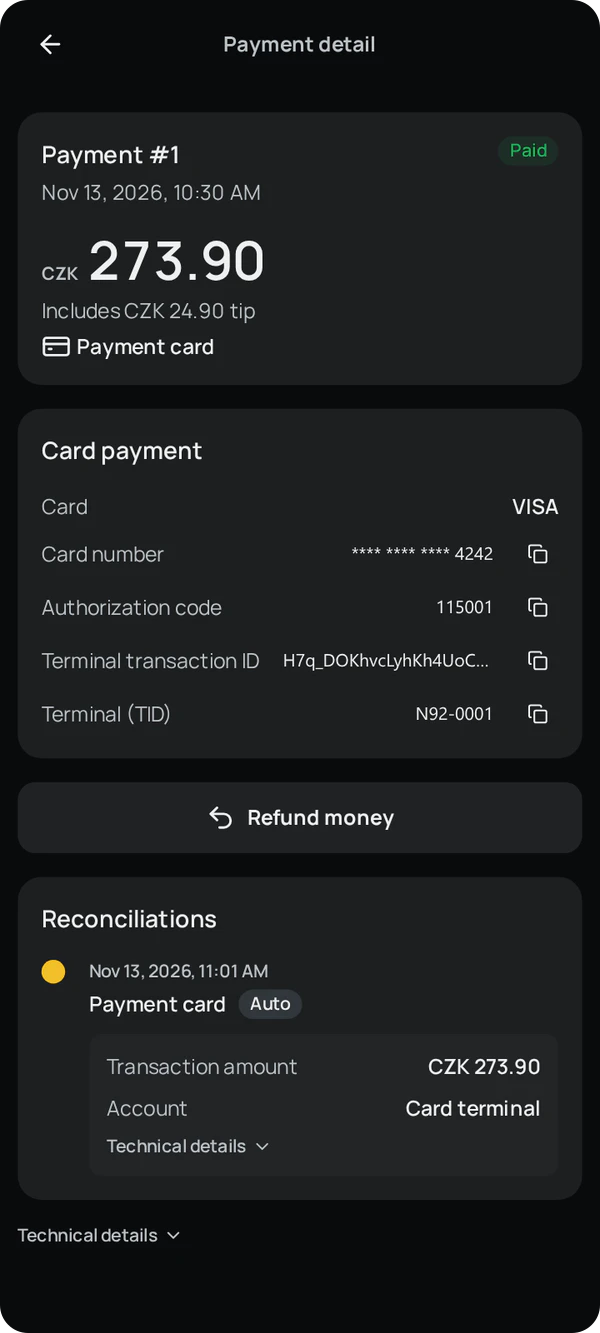
The payment detail shows the masked card number, the card type, the authorization code, the transaction ID and the terminal ID.
Payment detail
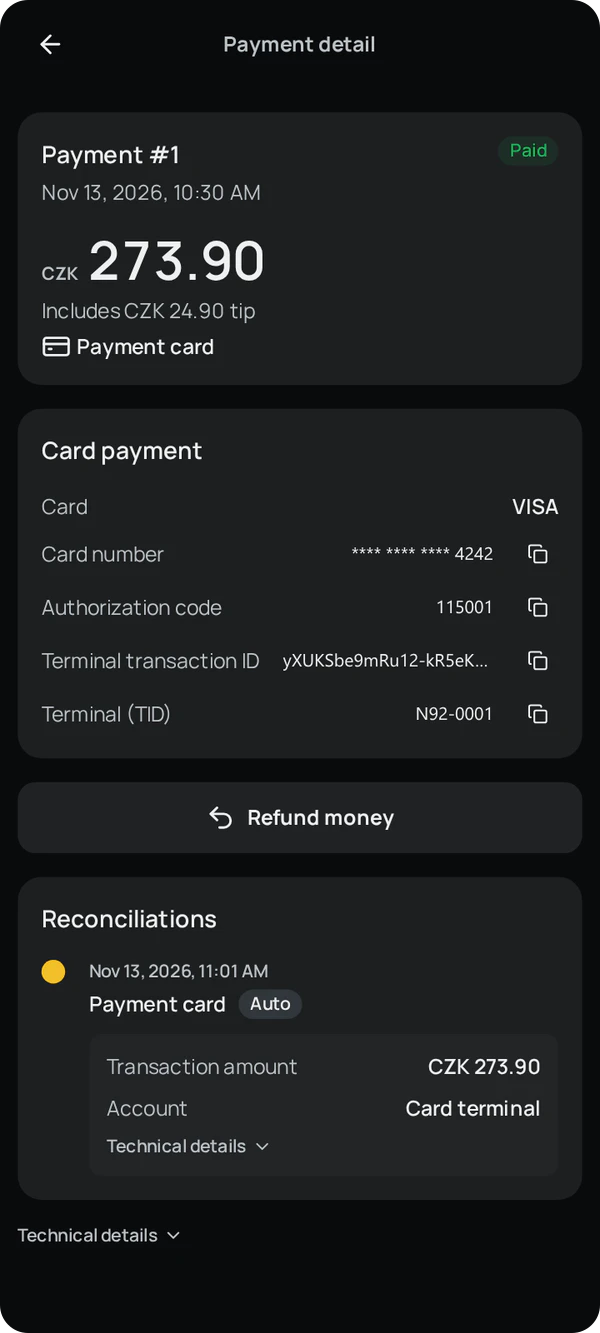
For every approved payment, Finito stores everything needed to refund it later: the transaction ID, the refund identifier, the device that took the payment and the time it was approved.
Reversal
Reversing a payment before the closure
A reversal cancels the whole payment directly on the terminal, and the card isn't needed. Finito uses it automatically when all of these conditions are met:
- you're refunding the whole payment, including the tip,
- nothing has been refunded from the payment yet,
- you're on the terminal that took the payment,
- no closure has been run from Finito on this terminal since the payment.
In Activity, open the payment and tap Refund money.
ActivityRefund money
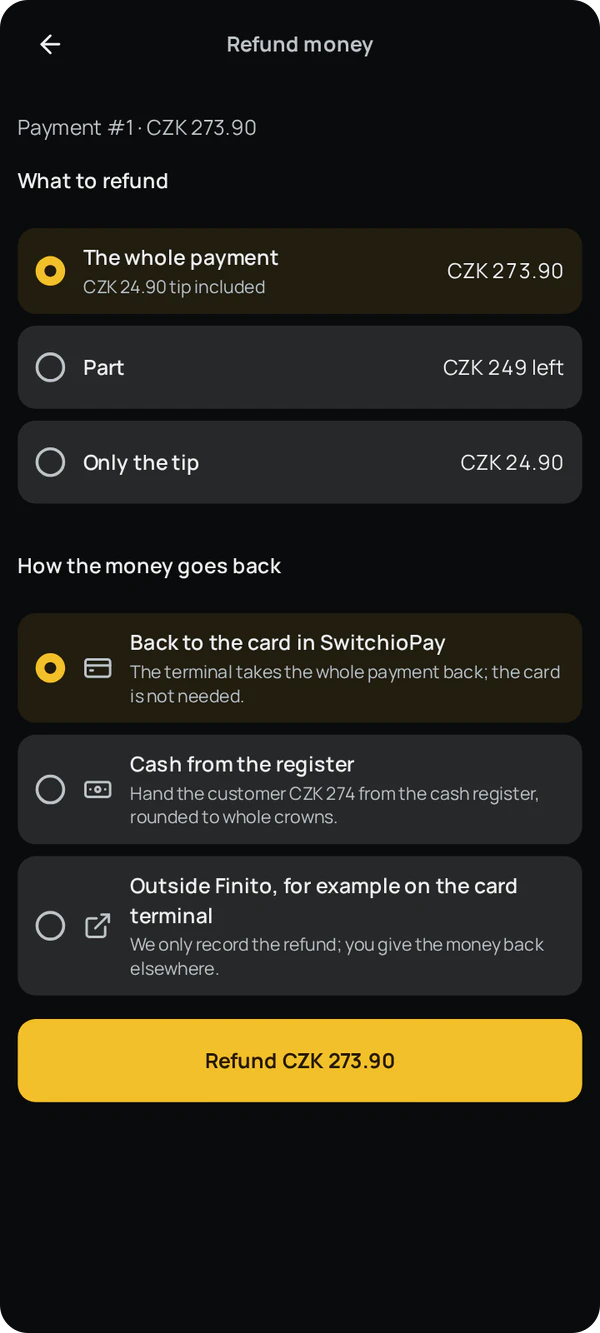
Choose the whole payment. The refund method explains that the terminal takes the whole payment back and the card isn't needed.
The whole paymentBack to the card in SwitchioPay
Confirm the refund. Finito waits while SwitchioPay reverses the payment.
Refunding to the card in SwitchioPay
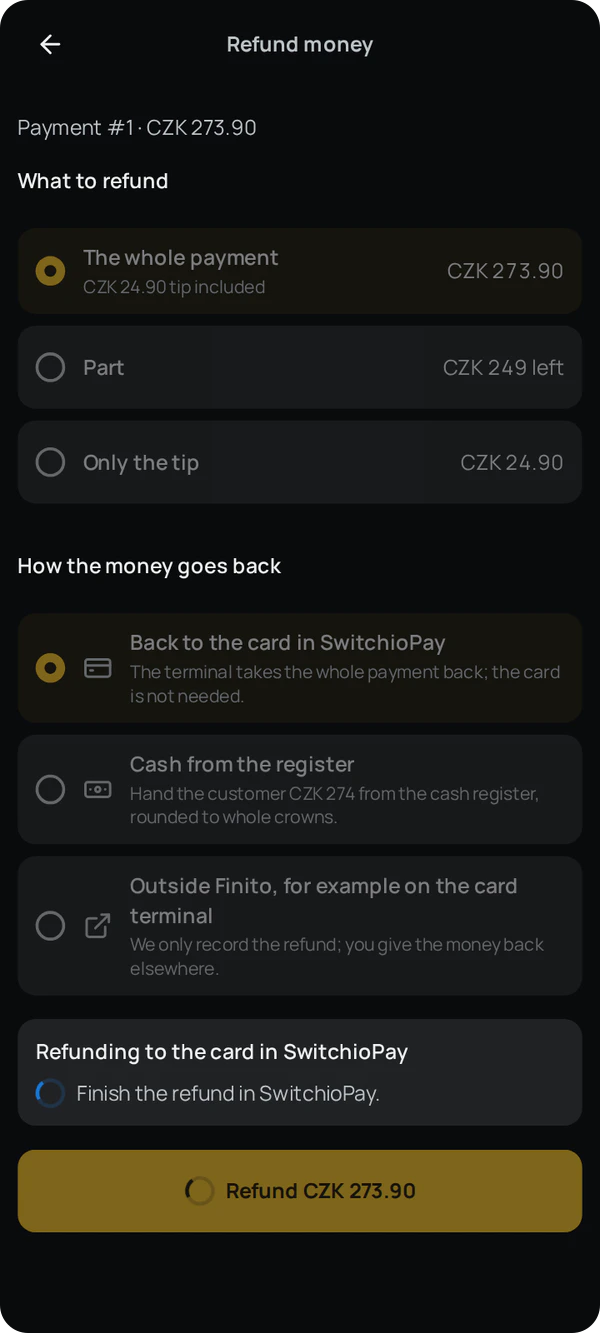
SwitchioPay reverses exactly the transaction whose ID Finito passes to it.
SwitchioPayReversing the payment The refund detail shows that the payment was reversed on the terminal, together with the transaction ID, the authorization code and the sequence number.
Payment reversed on the terminal
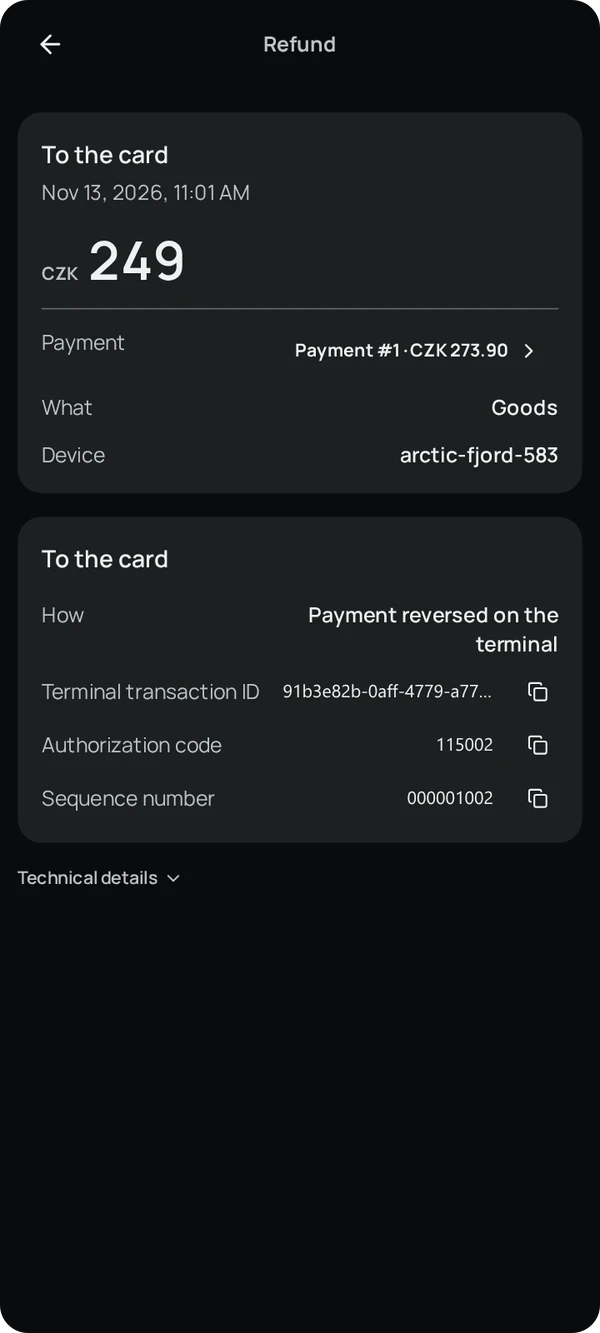
Refund
Refunding to the card after the closure
When a reversal isn't possible, Finito refunds the money to the card the customer paid with. This happens after a closure, when refunding only part of the payment or only the tip, when something has already been refunded, or when you refund on a different terminal from the one that took the payment.
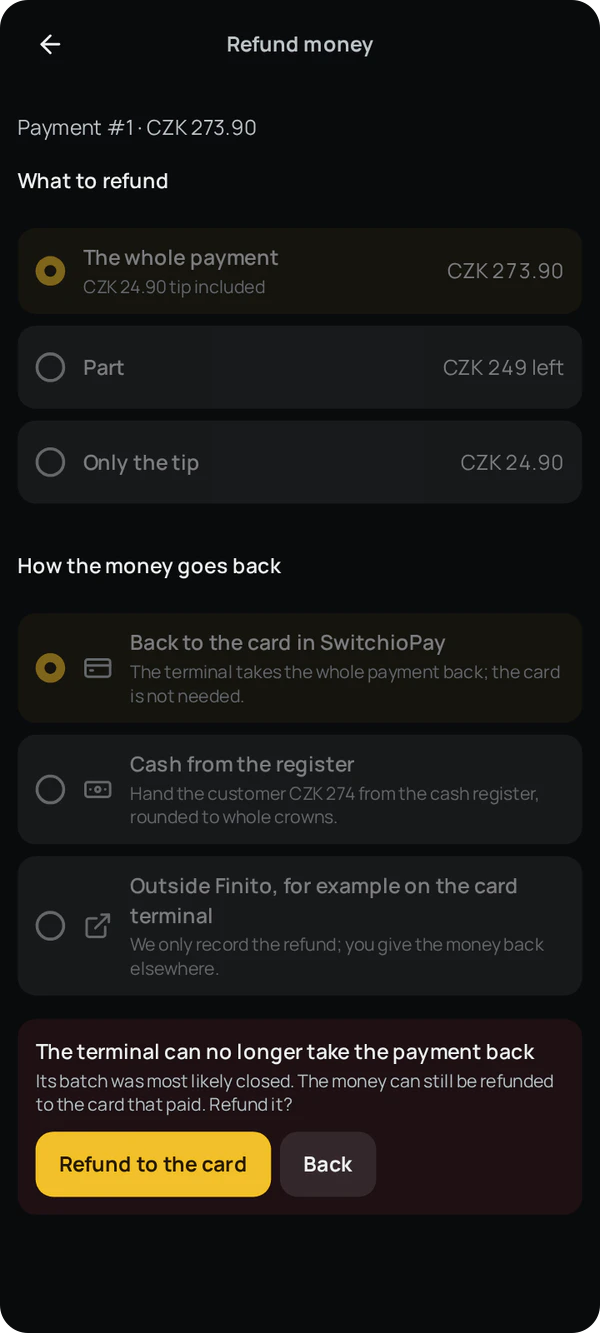
After a closure, the same screen offers a refund to the card the customer paid with.
The whole paymentBack to the card in SwitchioPay
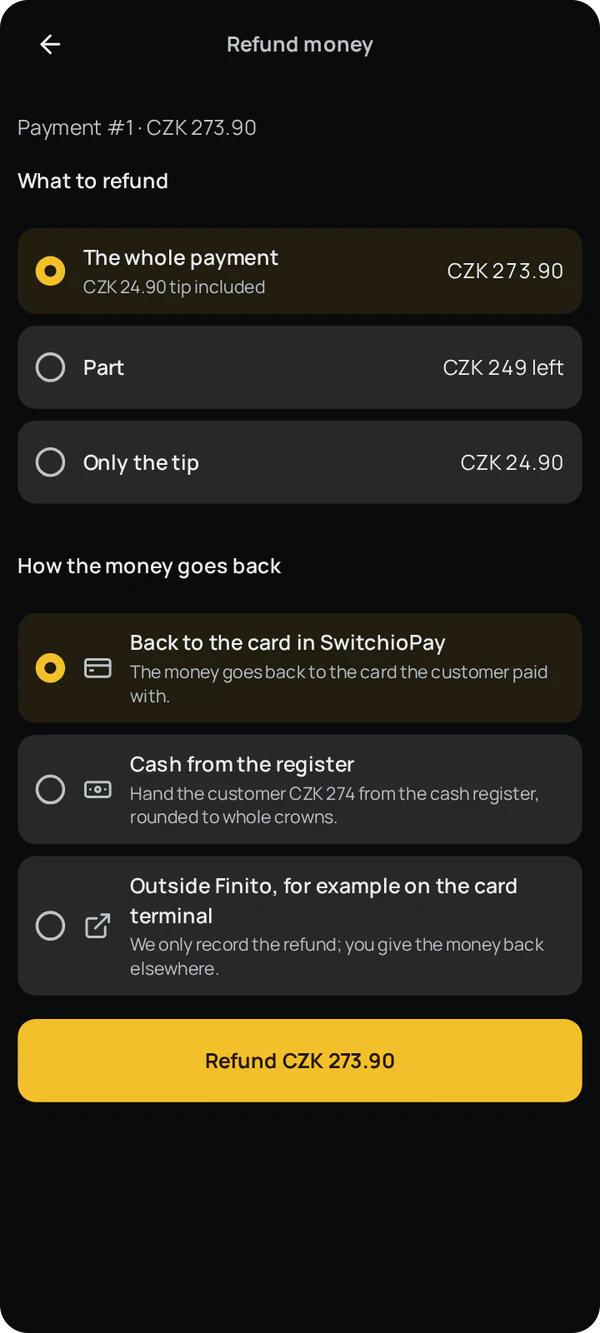
To refund part of the payment, enter the amount or select the items.
Part
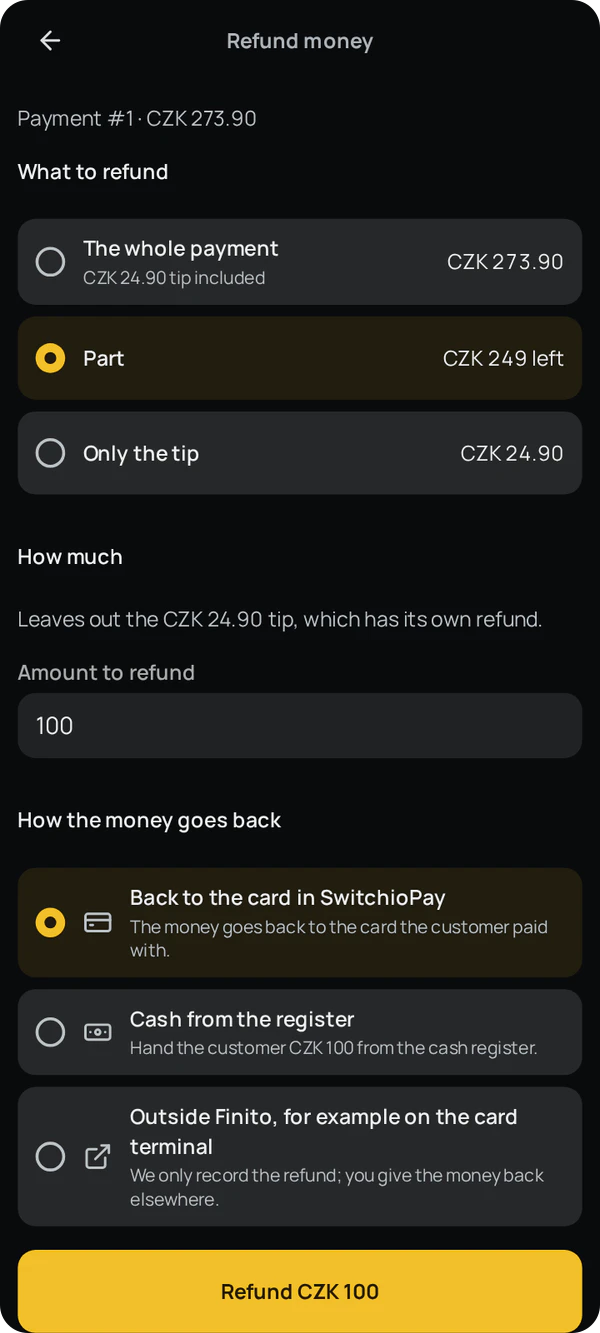
The tip can also be refunded on its own.
Only the tip
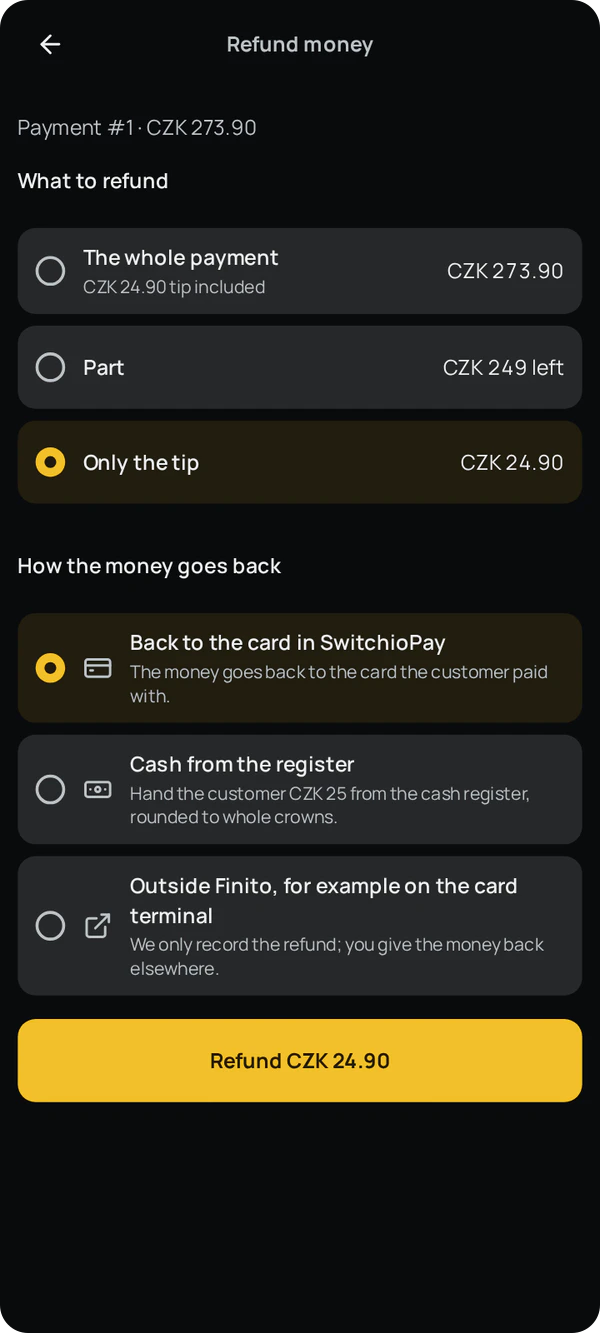
SwitchioPay refunds the money to the card; follow the instructions on the terminal.
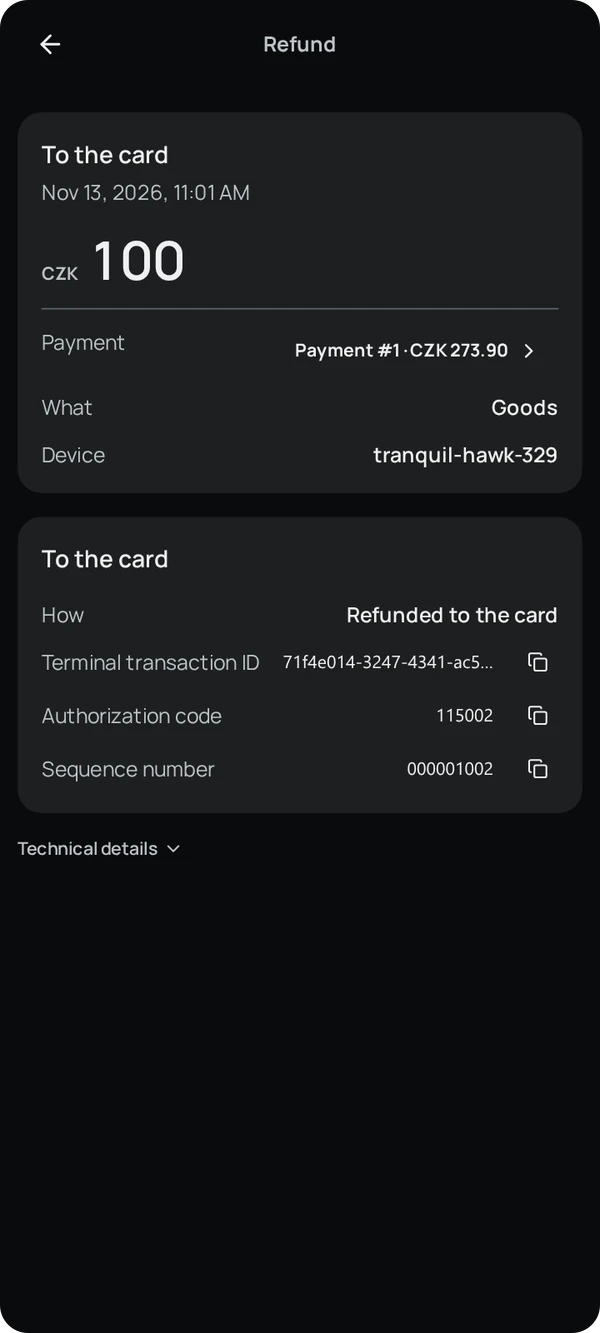
SwitchioPayRefunding to the card The refund detail shows that the money went back to the card, along with the details the terminal returned.
Refunded to the card
If the batch was closed outside Finito, the terminal declines the reversal. The app then checks with SwitchioPay whether the payment was reversed after all and, if not, offers a refund to the card instead.
Refund to the card
Closure
Closing the batch after every shift
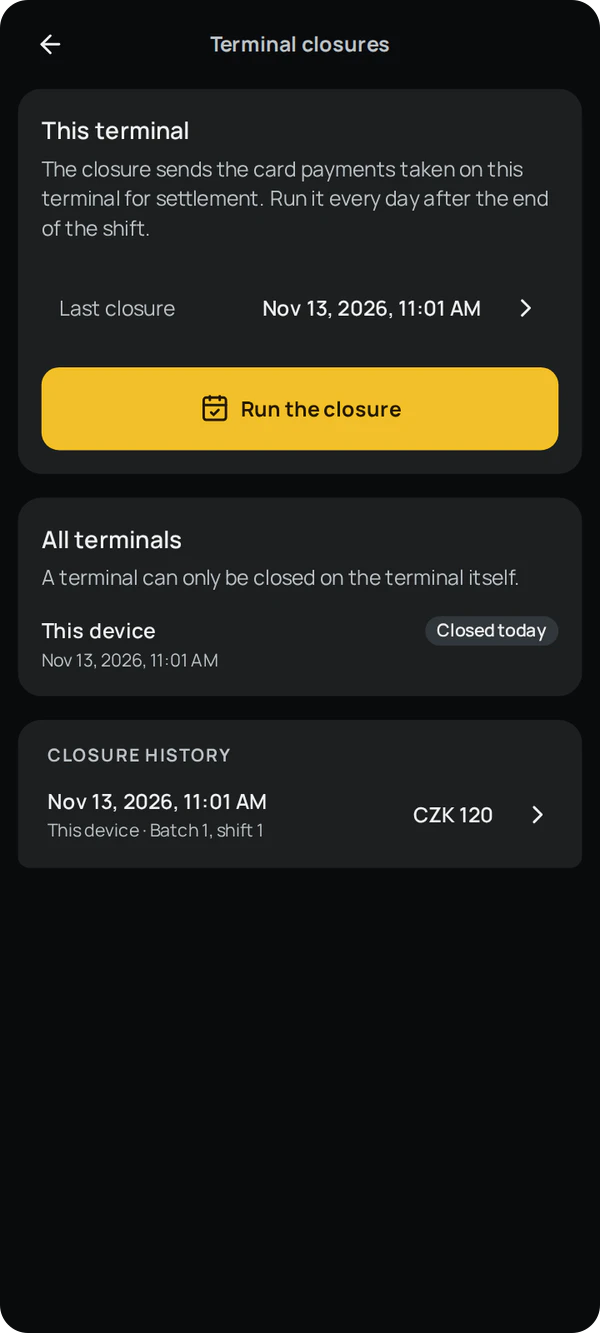
A closure sends the terminal's card payments for settlement. Run one every day at the end of the shift, on each terminal separately.
In Settings, open Terminal closures. This item appears once card payments are turned on.
SettingsTerminal closures
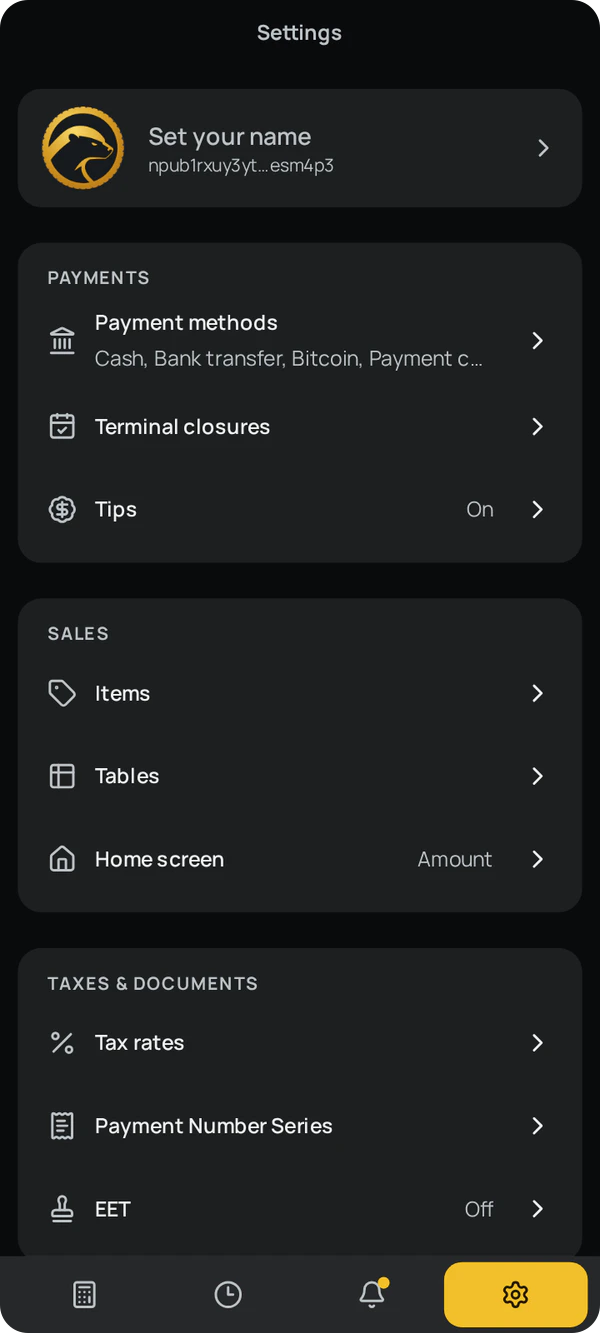
You'll see this terminal's last closure. Start a new one.
Run the closure
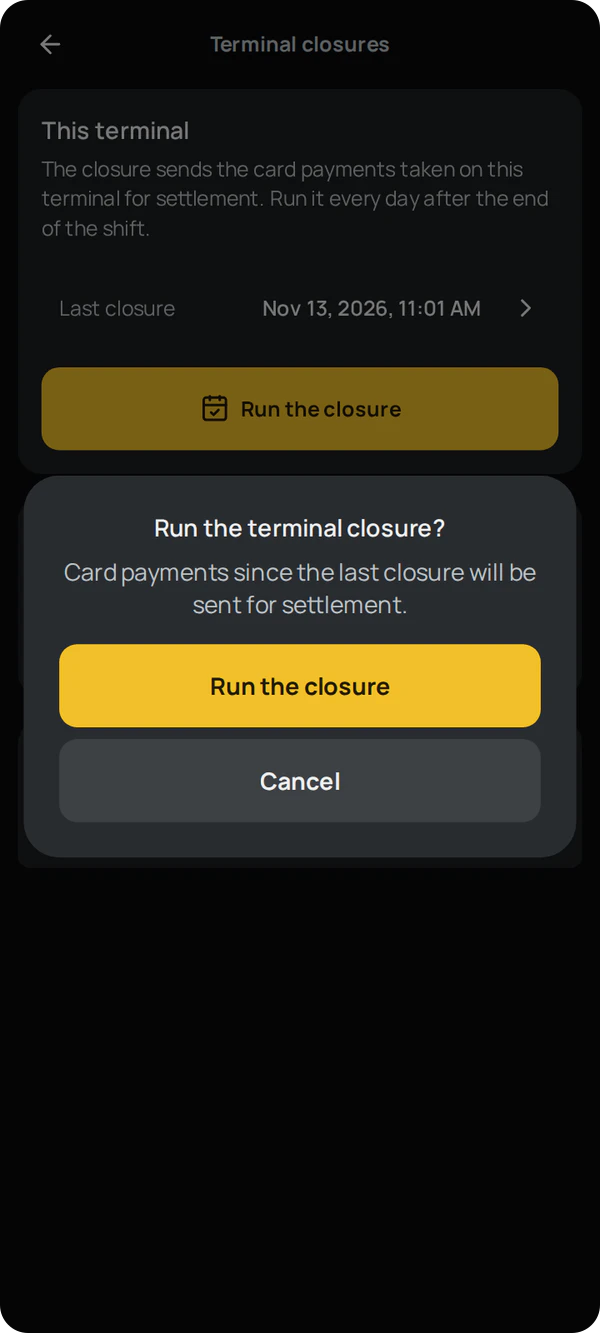
Confirm that the card payments since the last closure should be sent for settlement.
Run the closure
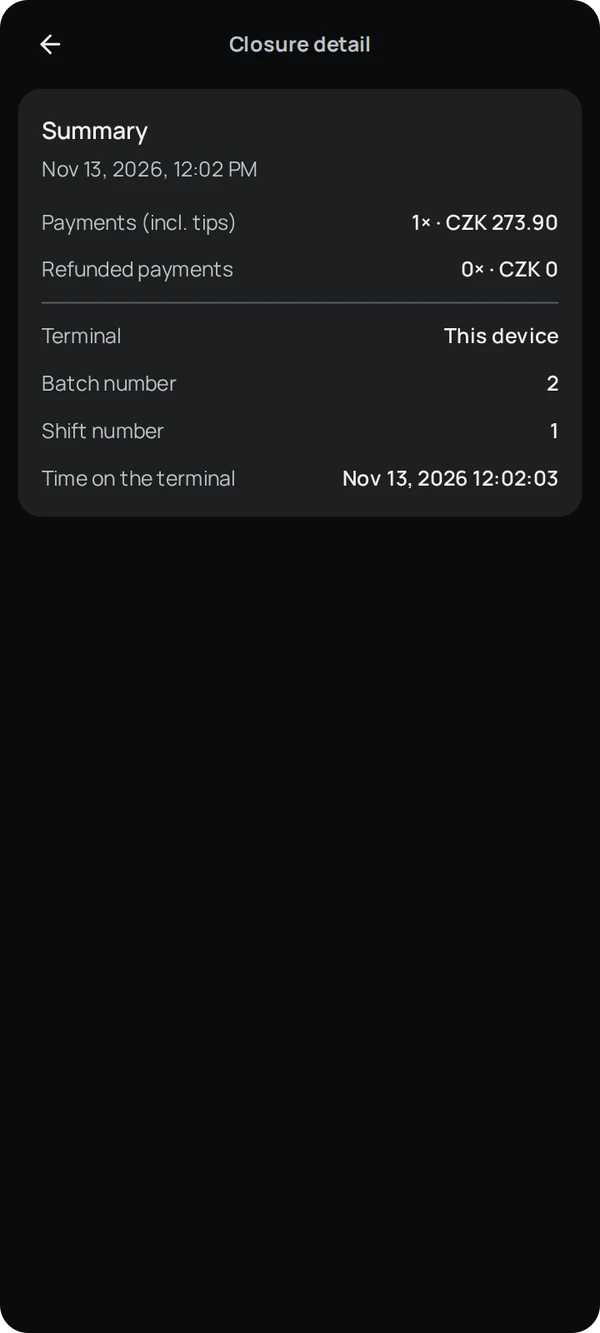
SwitchioPay closes the batch.
SwitchioPayClosing the batch Finito saves the closure summary (payments including tips, refunds, adjustments) with the batch and shift numbers. The closure history and the overview of all the business's terminals are visible on every device.
Summary
- Each terminal closes only its own batch, and only on that terminal.
- Finito isn't aware of closures started directly in SwitchioPay or run automatically.
- Finito doesn't yet compare closure totals with its own payments.
Unusual situations
When things don't go to plan
What you'll see, what to do and what gets saved. A payment only counts as paid once SwitchioPay has approved it. If the outcome is unclear, the app asks you to check before trying the card again.
| Situation | What you'll see | What to do | What gets saved |
|---|---|---|---|
| The card is declined or the customer's bank refuses the payment. | A message on the Payment card tab:Payment by payment card did not go through. 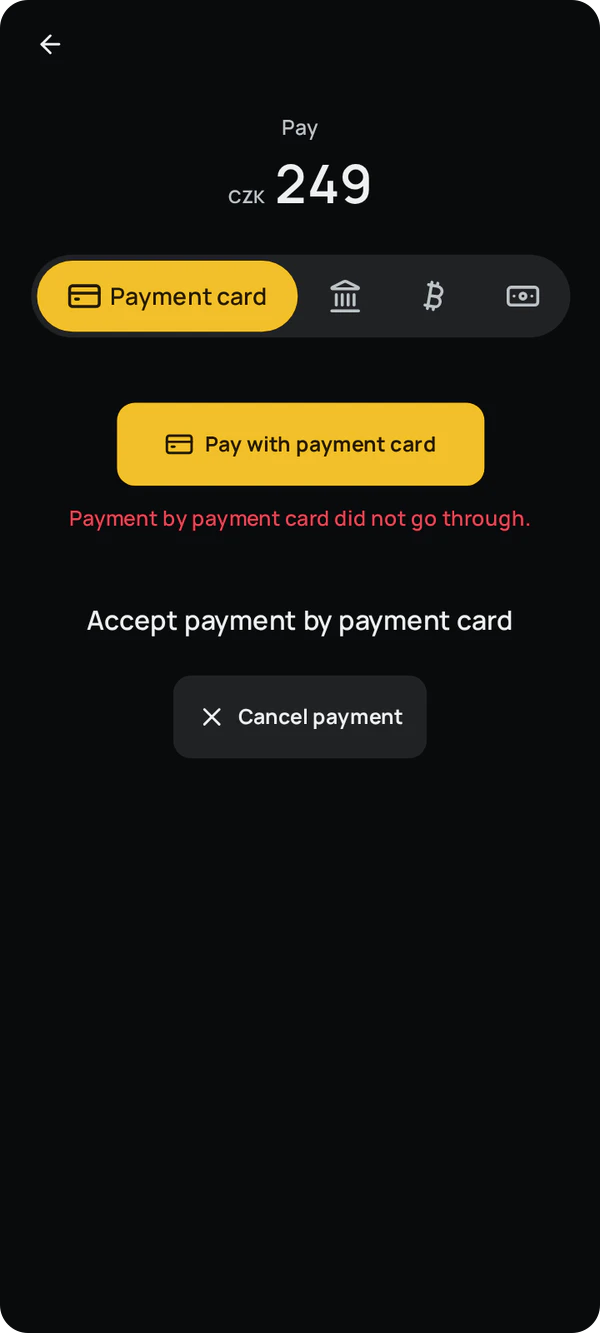 | Try the card again, or let the customer pay another way. | Nothing; the payment stays unpaid. |
| The payment is cancelled on the terminal. | Depending on SwitchioPay's response, the payment either didn't go through or its outcome is unknown. We're still verifying this on Comgate's development terminal. | Try again; if the outcome is unknown, check SwitchioPay first. | Nothing, unless SwitchioPay approves the payment. |
| SwitchioPay doesn't return a usable result, for example because it crashed or Android closed it. | A note that the outcome is unknown. The app then asks SwitchioPay about the transaction on its own.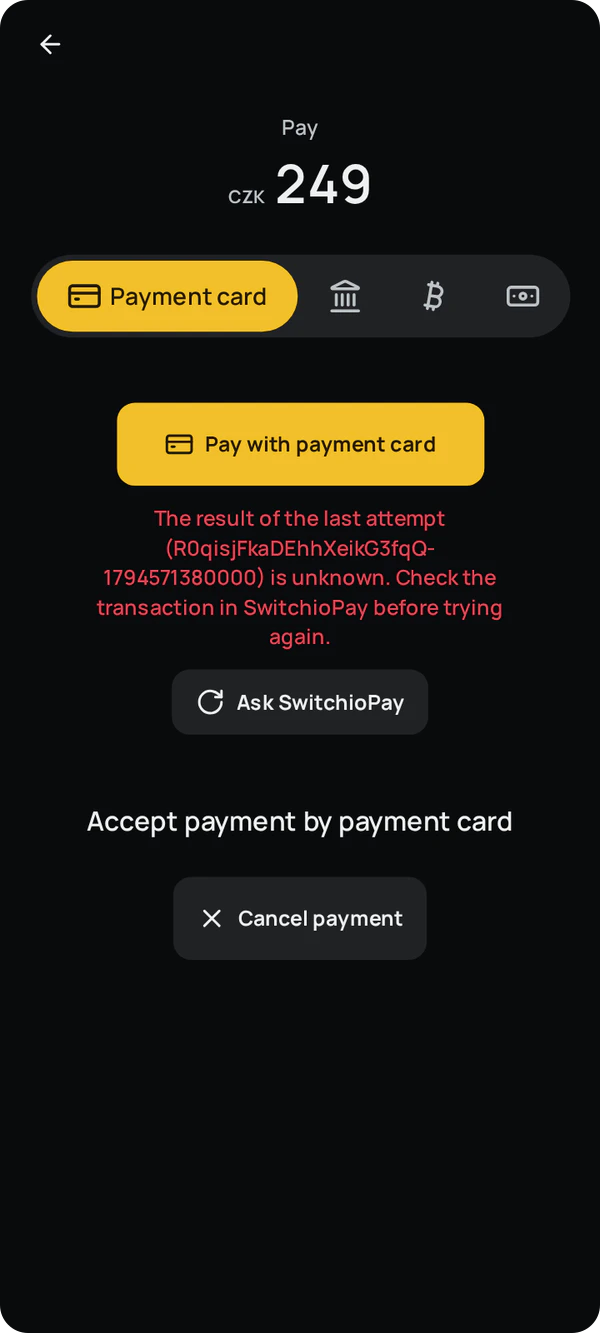 | Wait for the answer. If SwitchioPay doesn't confirm the approval, check the transaction in SwitchioPay. | The payment as paid only once SwitchioPay confirms the approval. Any other answer leaves the outcome unknown. |
| You want to try the card again although the previous attempt's outcome is unknown. | A confirmation warning that the card may already have been charged:Charge the card again? 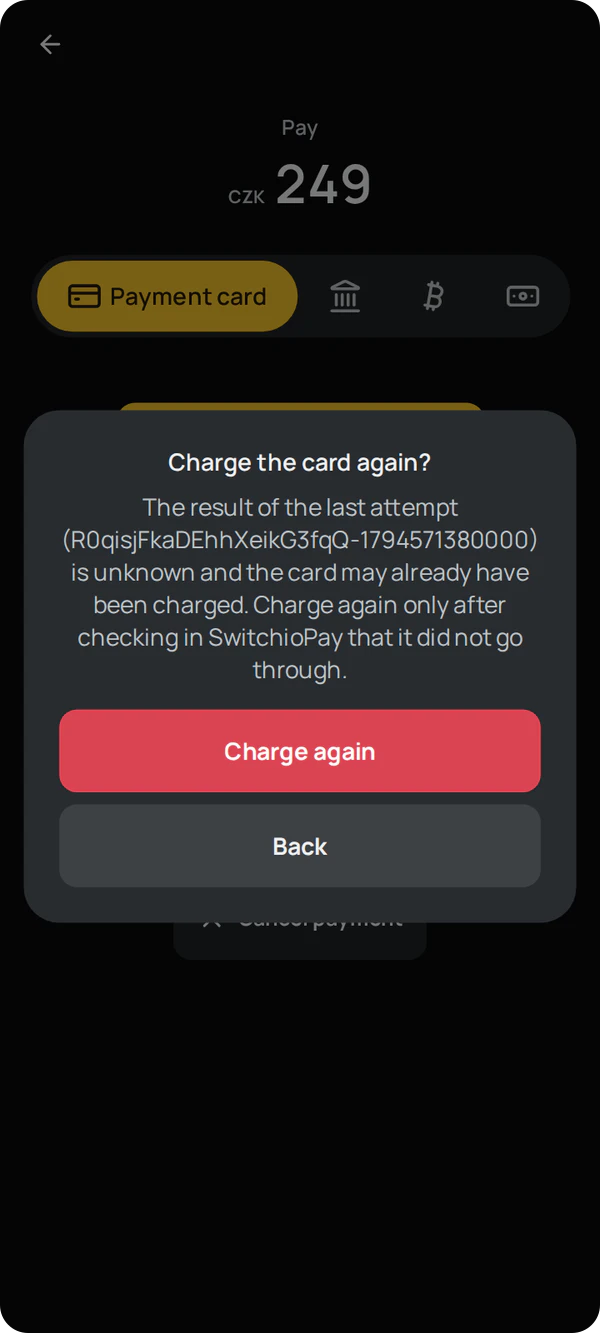 | Confirm only after checking in SwitchioPay that the previous attempt didn't go through. | A new attempt with a new transaction ID. |
| SwitchioPay is busy with another operation or doesn't start. | A note that SwitchioPay is busy and you should try again.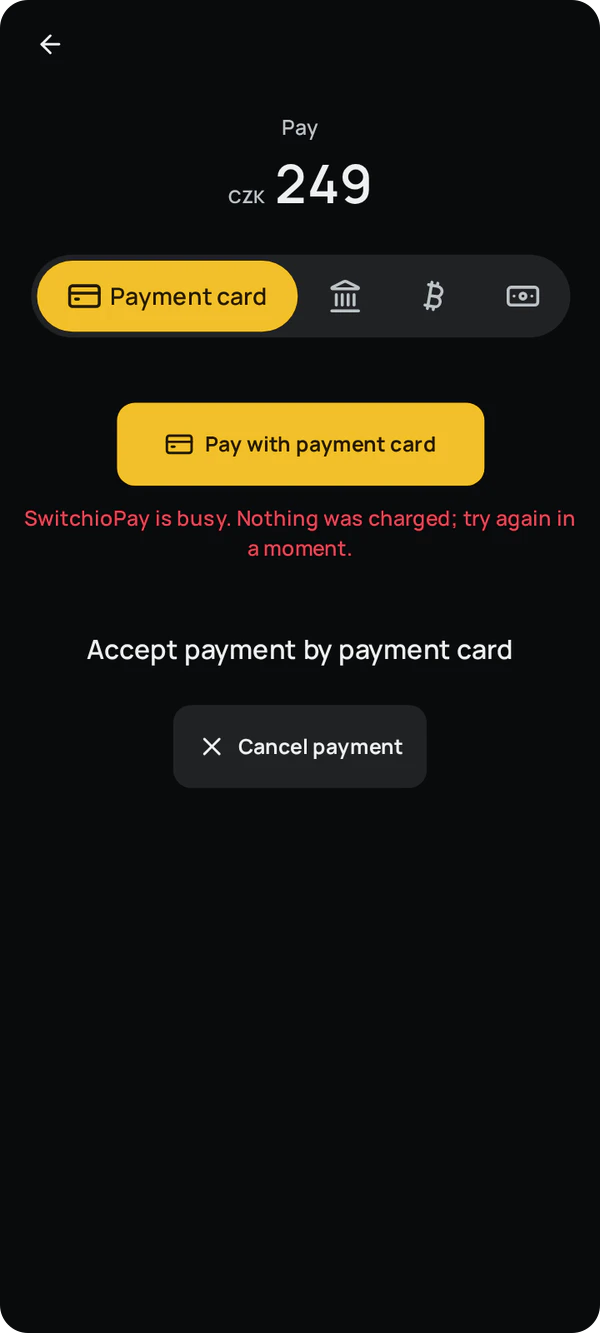 | Finish the operation in progress in SwitchioPay and start the payment again. | Nothing; the terminal never started. |
| SwitchioPay isn't installed on the terminal. | A warning next to the payment card in the settings and when taking a payment:The SwitchioPay terminal app is not available on this device. 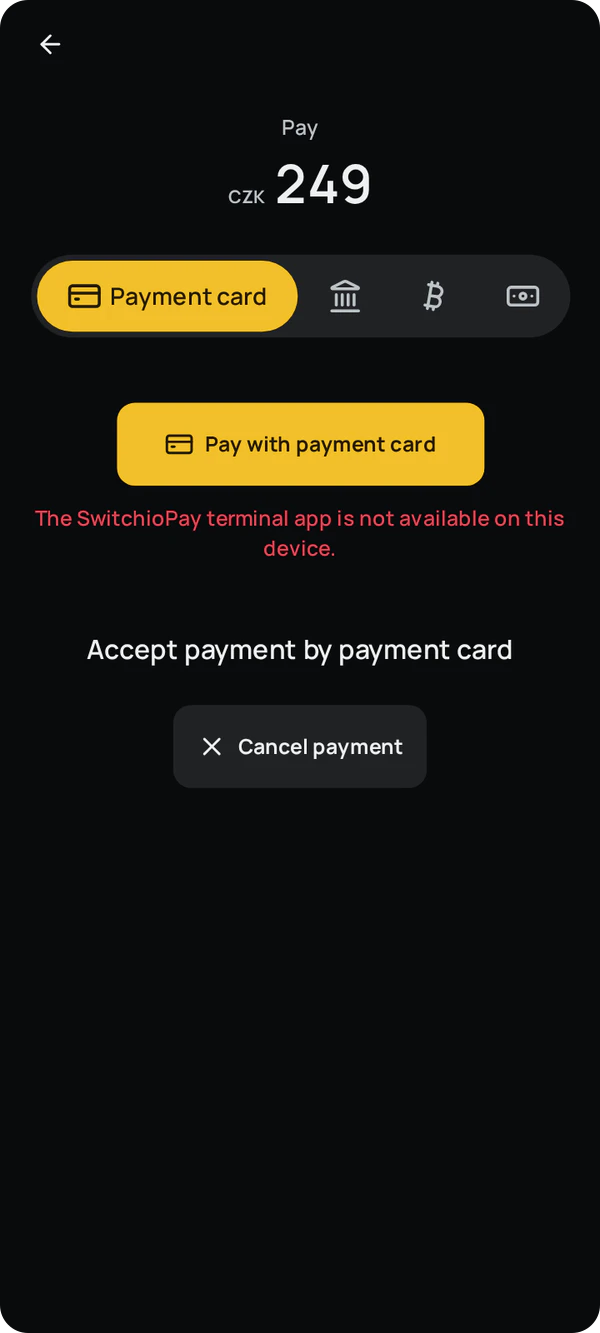 | Have SwitchioPay installed and set up on the terminal. | Nothing. |
| Android closes Finito while SwitchioPay is on screen. | When you return to the app:Card payment settled after the app restarted. 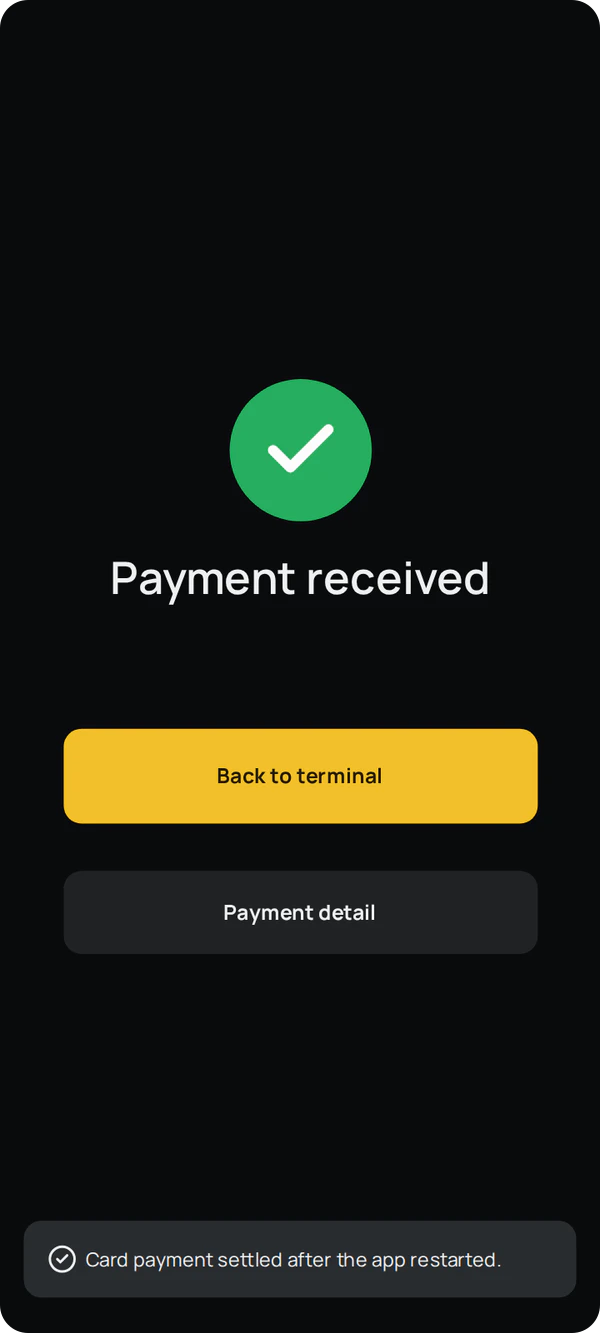 | Nothing. The terminal's result isn't lost and is processed as soon as the app opens again. | The payment as reported by SwitchioPay. |
| A saved result belongs to another account on this terminal. | Nothing until you switch to that account. | Switch to the account the payment was taken in. Until then, the terminal won't start another payment. | The result is saved only in the account it belongs to. |
| A payment cancelled on another device was paid by card anyway. | In the payment detail:Canceled, but money arrived 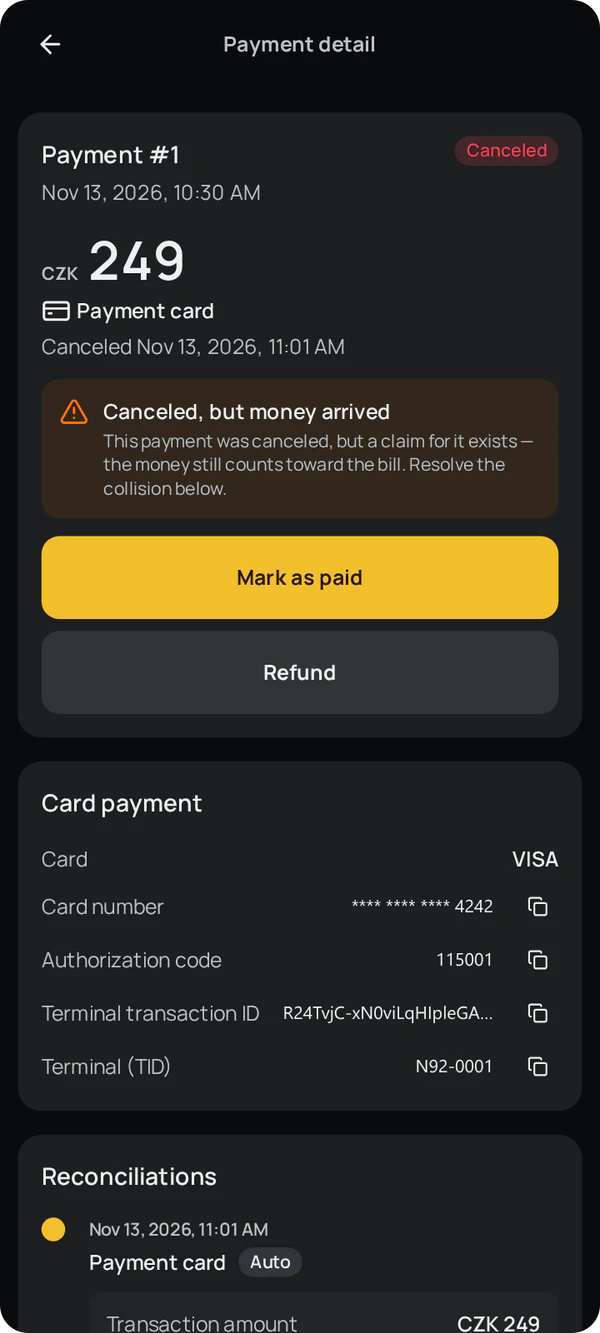 | Mark the payment as paid, or refund the money. | The card payment; the money left the card, so it counts. |
| A reversal after a closure that was run outside Finito. | On the refund screen:The terminal can no longer take the payment back | Refund to the card instead. | The refund once the terminal approves it. If the payment was already reversed, nothing is saved twice. |
| The outcome of a refund to the card is unknown. | Under refunds in the payment detail:The refund's result is not known, so the card may have been refunded. Check SwitchioPay before refunding again. 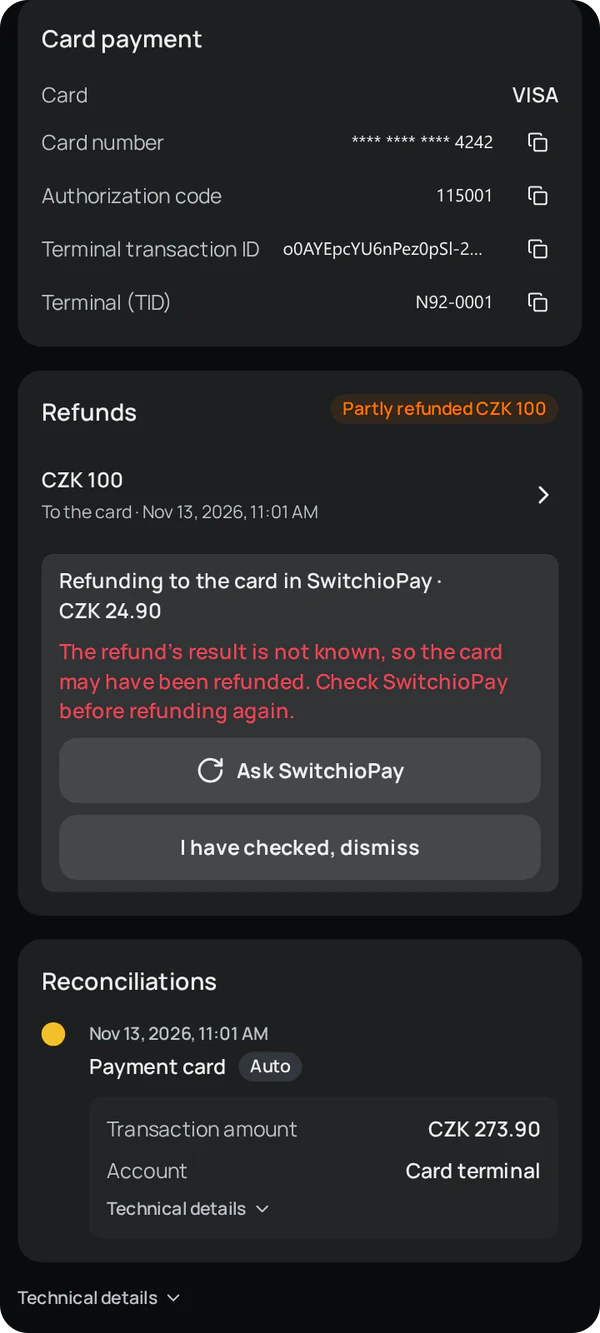 | Let the app ask SwitchioPay, or check the refund in SwitchioPay yourself and dismiss the notice. | The refund only once SwitchioPay confirms it. Until then, nothing else can be refunded from this payment. |
| A refund is waiting for SwitchioPay on another device. | Under refunds in the payment detail:Waiting for SwitchioPay on another device. If that device is gone, check SwitchioPay and dismiss the refund. | Wait. If that device is no longer available, check the refund in SwitchioPay and dismiss the notice. | Anything SwitchioPay approves on that device, even after the notice is dismissed. |
| The outcome of a closure is unknown. | On the closures screen:We don't know whether the closure went through. Check it in the SwitchioPay app. 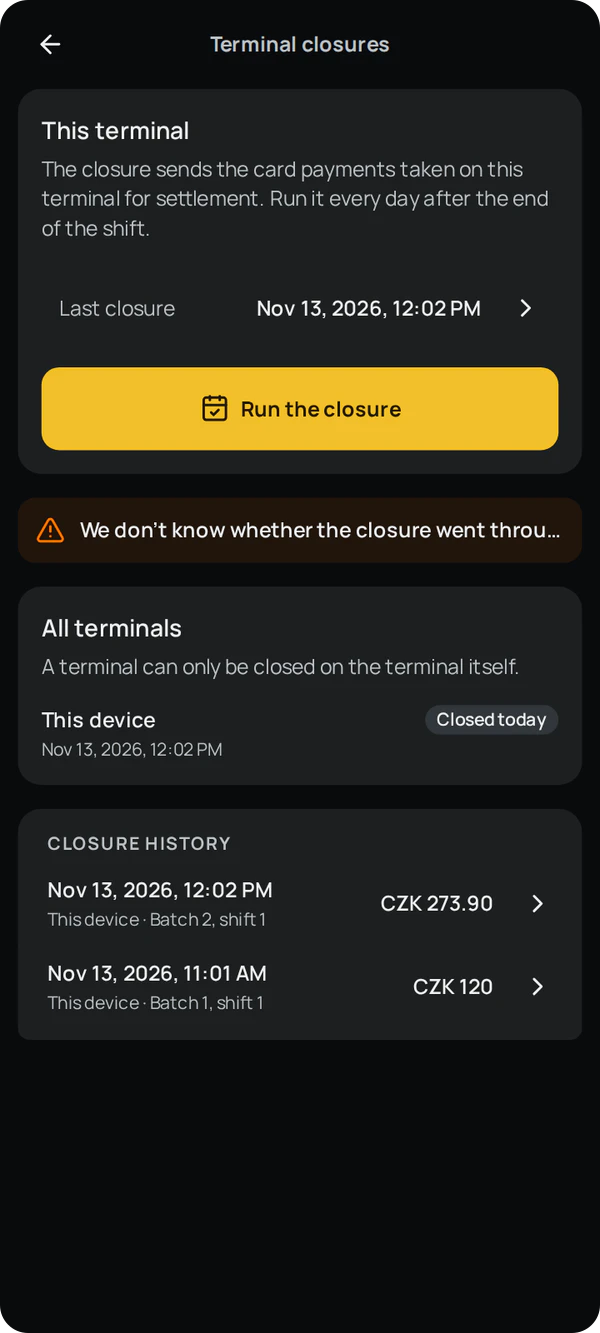 | Check in SwitchioPay whether the batch was closed. | Nothing; only a closure with usable totals is saved. |
| A demo account. | When taking a payment:A real card payment cannot be taken in a demo account. 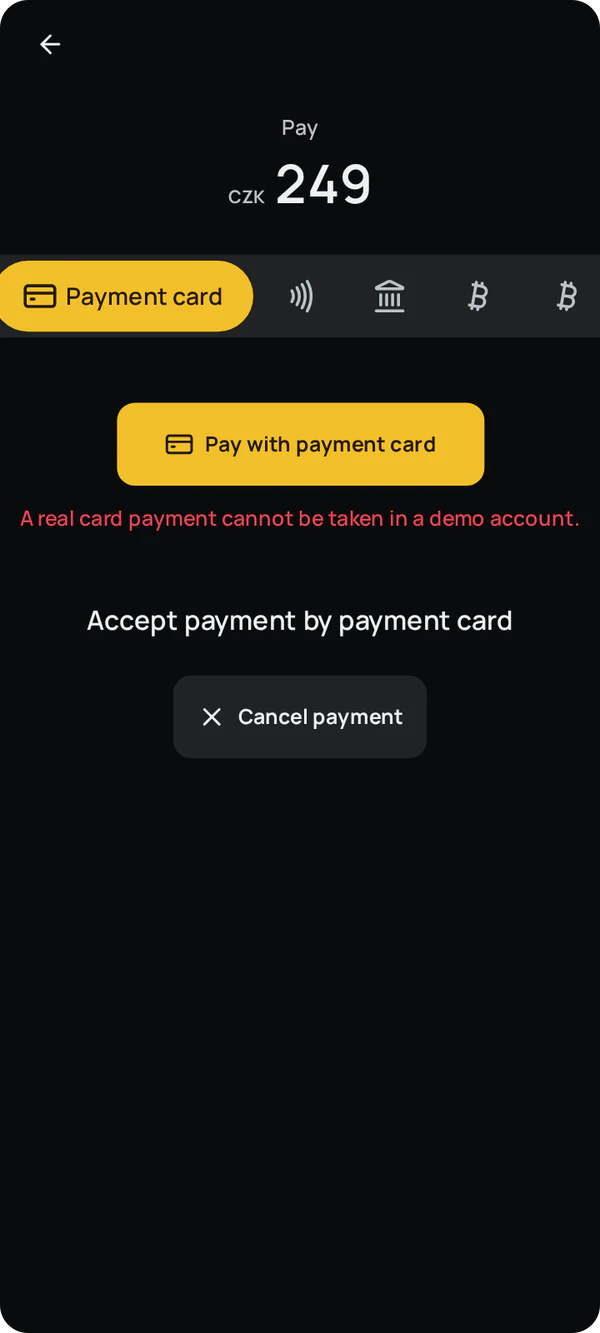 | Take card payments in a real account. | Nothing; a demo account never starts SwitchioPay. |
| The terminal has no internet connection. | Finito keeps working, because it talks to SwitchioPay right on the terminal. SwitchioPay, however, needs the internet to authorize the card. | Restore the connection. | Everything is saved on the terminal, and the business's other devices see it once it's back online. |
Testing
Testing with Comgate
In Comgate's test environment, the amount decides the outcome of a payment, and only contactless payments work. Enter these amounts on the keypad:
| Amount | Simulator response | What Finito shows |
|---|---|---|
| CZK 1.01 | Approved | The payment is received and paid. |
| CZK 2.01 | Partially approved | Still being verified on the development terminal; Finito doesn't request partial approvals. |
| CZK 1.10 | Duplicate transaction | Payment by payment card did not go through.The payment stays unpaid and you can try the card again. |
| CZK 6.02 | Insufficient funds | Payment by payment card did not go through.The payment stays unpaid and you can try the card again. |
| CZK 6.05 | Expired card | Payment by payment card did not go through.The payment stays unpaid and you can try the card again. |
| CZK 7.09 | Authorization timed out | Payment by payment card did not go through.The payment stays unpaid and you can try the card again. |
| CZK 31.09 | Timed out waiting for the card | Payment by payment card did not go through.The payment stays unpaid and you can try the card again. |
| Any other amount | Approved | The payment is received and paid. |
To test reversals, refunds and closures, follow the steps above: pay CZK 1.01 and reverse the payment, then make another payment, run a closure and refund that payment to the card.
Amounts taken from Comgate's simulator documentation, checked on 13 November 2026. apidoc.comgate.cz
Limitations
What Finito doesn't do
- It doesn't print receipts; SwitchioPay prints them on the terminal's printer, according to its own settings.
- It doesn't support pre-authorizations, MOTO payments or cashback.
- It doesn't refund without an original payment; every refund to a card belongs to a payment taken in the app.
- It doesn't run closures automatically; staff have to start them.
- It doesn't yet compare closure totals with its own payments.